
Budyn Weather MOTD for Debian
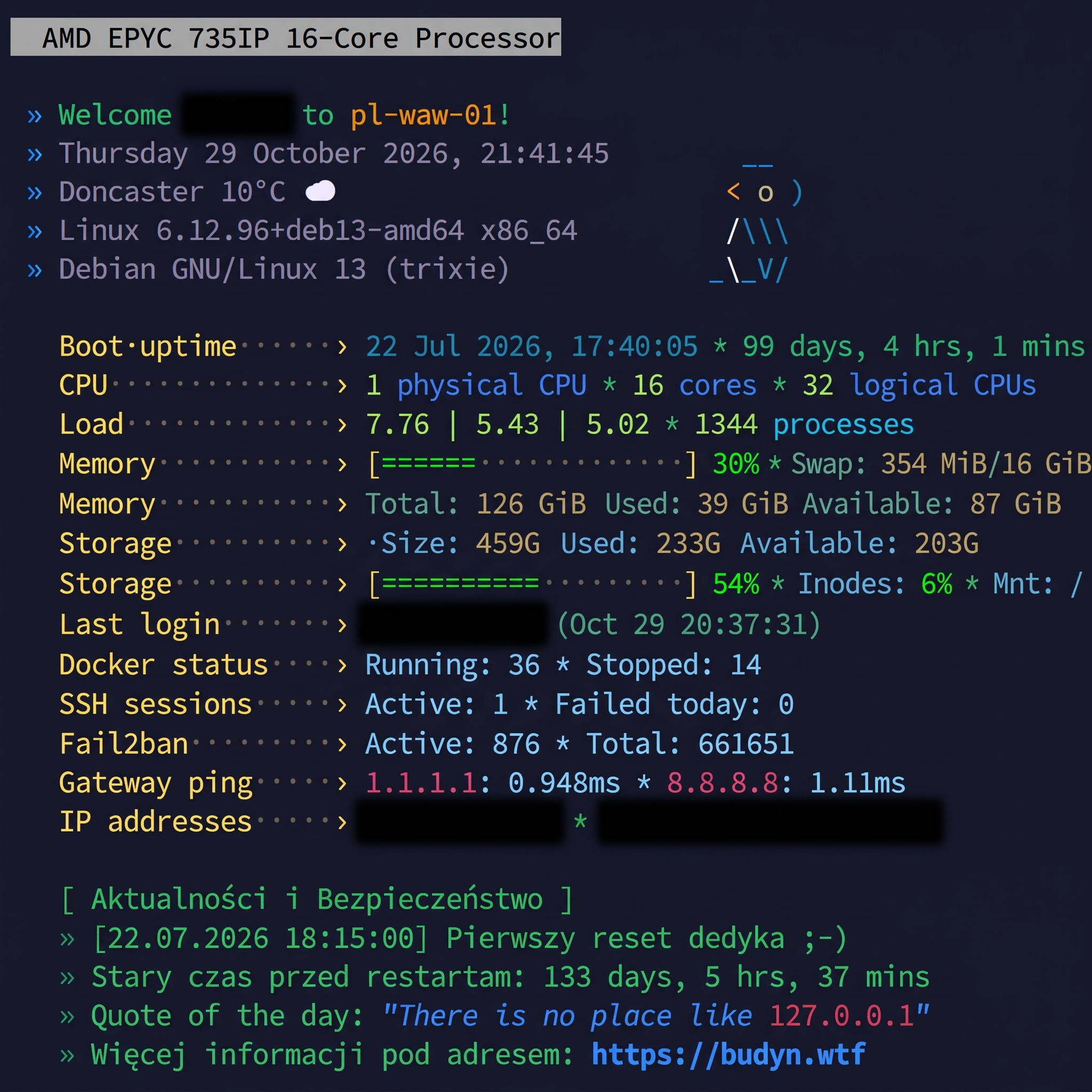
This guide explains how to install the Budyn Weather MOTD script on Debian, configure its API key, show it to users at SSH login, and show it again when entering a root shell with sudo -i.
The script is published at:
- Raw script: https://budyn.wtf/resources/motd/raw
- Weather API documentation: https://budyn.wtf/api-docs
The commands below target Debian 13 and assume an account with sudo access.
What the script does
- Displays host, CPU, memory, storage, uptime, SSH, and optional Docker/Fail2ban information.
- Shows CPU temperature beside the load averages when a supported sensor is available; the unit is configurable as Celsius or Fahrenheit.
- Fetches weather from the Budyn Weather API and displays the returned condition emoji.
- Reads the API key from
/etc/budyn-weather.curl; the key is not stored in the public script. - Caches the rendered weather line under
/runfor 10 minutes by default. - Can run globally at login through
/etc/update-motd.d/. - Can also be invoked from root's
.bashrcwhen usingsudo -i.
Attribution and legacy MOTD
This Debian-focused script is an adaptation of 15-mosto by Steeve L (copyright 2024–2025), whose original header includes the MIT License. The 15-mosto header also credits the visual inspiration to ar51an's Raspberry Pi MOTD, copyright 2021 AA, under the MIT License.
The Budyn adaptation reworks parts of 15-mosto's presentation and selected system statistics. It replaces the original weather-provider options with the Budyn Weather API and adds a protected curl configuration for the API key and a weather cache. It is not the complete 15-mosto script.
When redistributing this adaptation or substantial portions of it, retain the upstream copyright and license notices, including the ar51an attribution made by 15-mosto. The MIT notice included in 15-mosto for Steeve L is reproduced here:
MIT License

Copyright (c) 2024-2025 Steeve L

Permission is hereby granted, free of charge, to any person obtaining a copy
of this software and associated documentation files (the "Software"), to deal
in the Software without restriction, including without limitation the rights
to use, copy, modify, merge, publish, distribute, sublicense, and/or sell
copies of the Software, and to permit persons to whom the Software is
furnished to do so, subject to the following conditions:

The above copyright notice and this permission notice shall be included in all
copies or substantial portions of the Software.

THE SOFTWARE IS PROVIDED "AS IS", WITHOUT WARRANTY OF ANY KIND, EXPRESS OR
IMPLIED, INCLUDING BUT NOT LIMITED TO THE WARRANTIES OF MERCHANTABILITY,
FITNESS FOR A PARTICULAR PURPOSE AND NONINFRINGEMENT. IN NO EVENT SHALL THE
AUTHORS OR COPYRIGHT HOLDERS BE LIABLE FOR ANY CLAIM, DAMAGES OR OTHER
LIABILITY, WHETHER IN AN ACTION OF CONTRACT, TORT OR OTHERWISE, ARISING FROM,
OUT OF OR IN CONNECTION WITH THE SOFTWARE OR THE USE OR OTHER DEALINGS IN THE
SOFTWARE.
1. Install required packages
The weather request requires curl and jq. The script also uses ping, process, and network information tools:
sudo apt-get update
sudo apt-get install -y curl jq iputils-ping procps iproute2 util-linux
Docker and Fail2ban are optional. Their sections are skipped or can be disabled if the corresponding services/tools are not installed. CPU temperature is detected automatically when a supported source is available. Intel/AMD systems may need the optional lm-sensors package; install it with sudo apt-get install -y lm-sensors, run sudo sensors-detect, then verify readings with sensors. No temperature is shown if no readable sensor is found.
2. Create the private API-key configuration
Create the curl configuration file with root-only permissions:
sudo install -o root -g root -m 600 /dev/null /etc/budyn-weather.curl
sudoedit /etc/budyn-weather.curl
Add this line in the editor, replacing the placeholder with an API key that has access to the weather endpoint:
header = "X-Budyn-API-Key: REPLACE_WITH_YOUR_BUDYN_API_KEY"Save and close the editor. Verify ownership and permissions:
sudo chown root:root /etc/budyn-weather.curl
sudo chmod 600 /etc/budyn-weather.curl
sudo stat -c '%U:%G %a %n' /etc/budyn-weather.curl
The expected permissions are root:root 600. Do not put the key in the script, this guide, a public paste, or a command that will be saved in shell history.
Test the key and API before installing the MOTD:
sudo curl --config /etc/budyn-weather.curl -fsS -G \
  --data-urlencode 'city=Doncaster' \
  --data-urlencode 'country=GB' \
  'https://budyn.wtf/api/v1/weather' | jq .
The response should be JSON with "success": true. If the request fails, check the API key, endpoint access, DNS/network connectivity, and the API documentation before continuing.
3. Download, inspect, and install the script
Download to a temporary file first. Do not pipe a remote script directly into a shell:
curl -fL --retry 3 \
  'https://budyn.wtf/resources/motd/raw' \
  -o /tmp/15-budyn-weather
Check the shell syntax and inspect the downloaded file:
sudo sh -n /tmp/15-budyn-weather
less /tmp/15-budyn-weather
Install it as a root-owned executable:
sudo install -o root -g root -m 755 \
  /tmp/15-budyn-weather \
  /etc/update-motd.d/15-budyn-weather
rm -f /tmp/15-budyn-weather
The filename must not have a .sh suffix or other characters excluded by run-parts.
4. Configure the city and optional sections
The script settings are near the top of /etc/update-motd.d/15-budyn-weather:
sudoedit /etc/update-motd.d/15-budyn-weatherReview these settings:
API_CURL_CONFIG='/etc/budyn-weather.curl'
WEATHER_CITY='Doncaster'
WEATHER_COUNTRY='GB'
WEATHER_SCALE='C'
CPU_TEMP_SCALE='C'
WEATHER_CONDITIONS=2
WEATHER_CACHE_SECONDS=600WEATHER_CITYandWEATHER_COUNTRYselect the location. Use a supported two-letter country code such asGBorPL.WEATHER_SCALEisCorF.CPU_TEMP_SCALEisCorFand controls the CPU temperature shown on the Load line.
On AMD EPYC hosts, the CPU sensor may be labeled Tctl. If it is missing, install lm-sensors, load the k10temp driver with sudo modprobe k10temp, and verify the reading with sensors.
WEATHER_CONDITIONS=2uses the API-provided condition emoji. Set it to1to display the condition text instead.WEATHER_CACHE_SECONDScontrols how long a weather result is reused.
The optional sections use on or off:
fail2ban=off
show_Last_Login=on
show_Docker=on
show_SSH=on
show_Ping=on
show_IP=on
If enabling Fail2ban, make sure FAIL2BAN_STATS_FILE points to the correct JSON file on that server, or install/configure fail2ban-client. The path in the published script may be specific to the original host. Review the NEWS_RESET, NEWS_OLD_UPTIME, and INFO_URL values too; the first two are host-specific footer text.
5. Disable the previous MOTD script
List the scripts that run-parts currently considers executable:
sudo run-parts --test /etc/update-motd.d/Identify the old custom MOTD script in that list. Disable it without deleting it. For example, if it is named 15-mosto:
sudo chmod a-x /etc/update-motd.d/15-mostorun-parts will then skip it. Keep the file as a backup until the new MOTD has been tested.
If the old script is also called directly from /root/.bashrc, replace that direct call as described in the next section. Disabling its executable bit alone will make Bash print Permission denied when .bashrc still tries to run it.
6. Enable the MOTD for all SSH users
Make sure the new script is executable and verify the active list:
sudo chmod 755 /etc/update-motd.d/15-budyn-weather
sudo run-parts --test /etc/update-motd.d/
The output should include /etc/update-motd.d/15-budyn-weather and should not include the disabled old custom script. Other Debian MOTD scripts may also appear.
Run all active MOTD scripts once to test their output:
sudo run-parts /etc/update-motd.d/Open a new SSH connection to verify the global login MOTD. This uses Debian's existing PAM/MOTD setup; do not edit SSH or PAM configuration if the MOTD is already shown at normal SSH login.
7. Show the MOTD after sudo -i
sudo -i starts a root login shell; it is not a new SSH login, so the global SSH MOTD is not guaranteed to run again. On systems where /root/.profile loads /root/.bashrc, add a conditional invocation to /root/.bashrc:
sudo cp -a /root/.bashrc \
  "/root/.bashrc.backup.$(date +%Y%m%d-%H%M%S)"
sudoedit /root/.bashrc
Remove any old direct invocation such as:
/etc/update-motd.d/15-mostoAdd this instead:
if [ -n "${SUDO_USER:-}" ] && [ "$SUDO_USER" != "root" ] && [ -t 1 ]; then
    /etc/update-motd.d/15-budyn-weather
fi
The condition runs the script in an interactive sudo -i shell, but avoids displaying it a second time for a direct root SSH login. The global /etc/update-motd.d/ entry still handles normal SSH logins for all users.
Check that root's login profile sources .bashrc:
sudo grep -n 'bashrc' /root/.profileIf no matching line is present, add this block to /root/.profile with sudoedit /root/.profile:
if [ -n "${BASH_VERSION:-}" ] && [ -f "$HOME/.bashrc" ]; then
    . "$HOME/.bashrc"
fi
Test the script directly, then open a fresh root login shell:
sudo /etc/update-motd.d/15-budyn-weather
sudo -i
If already at a root prompt, run exit first, then sudo -i from the regular user account.
8. Updating the script
The raw URL may serve updated content. Download and inspect each update before replacing the installed version. Keep the API key file separate; updating the script should not overwrite /etc/budyn-weather.curl.
sudo cp -a /etc/update-motd.d/15-budyn-weather \
  "/etc/update-motd.d/15-budyn-weather.backup.$(date +%Y%m%d-%H%M%S)"
curl -fL --retry 3 \
  'https://budyn.wtf/resources/motd/raw' \
  -o /tmp/15-budyn-weather
sudo sh -n /tmp/15-budyn-weather
less /tmp/15-budyn-weather
sudo install -o root -g root -m 755 \
  /tmp/15-budyn-weather \
  /etc/update-motd.d/15-budyn-weather
rm -f /tmp/15-budyn-weather
Reapply any server-specific location, toggle, or footer settings after an update if they are not included in the published version.
Troubleshooting
Weather API key config unavailable: create/etc/budyn-weather.curl, check its header syntax, and verify it is readable by root.Weather API needs jq: install it withsudo apt-get install jq.Weather API unavailable: run the API test from step 2 and check the response/error.- The old MOTD still appears: check
sudo run-parts --test /etc/update-motd.d/and remove any direct old-script invocation from/root/.bashrc. Permission deniedfor the old script after disabling it:/root/.bashrcstill tries to execute it. Replace that line with the conditional call in step 7.- MOTD appears at SSH login but not after
sudo -i: check the conditional in/root/.bashrc, verify/root/.profileloads it, then test with a freshsudo -i. - The MOTD appears twice: check for multiple enabled custom scripts and duplicate calls in
/root/.bashrcor/root/.profile.


